Project Overview
In this project, we will design and implement a complete on-premises IT infrastructure within a home lab environment. The objective is to simulate a real-world enterprise setup that includes virtualization, server administration, automation, monitoring, patch management, and performance testing.
This project will cover the following key areas:
- Installation and management of Windows and Linux servers
- Deployment of Linux servers on VMware ESXi hosts
- Centralized management using VMware vCenter
- Server provisioning and configuration using Ansible and Terraform
- Automation of administrative tasks using Ansible and Puppet
- Monitoring of Linux and Windows servers with Zabbix, Prometheus and Grafana
- OS patching and upgrade management
- Stress testing and performance analysis
The purpose of this project is to maintain hands-on experience across VMware technologies, Linux administration, and modern DevOps practices within a controlled lab environment.
Host System Configuration
The entire lab environment is built on the following desktop system and below details:
Device Name: win01
Processor: AMD FX™-8350 Eight-Core Processor @ 4.00 GHz
Installed RAM: 32.0 GB (31.5 GB usable)
Operating System: Windows 10 Pro
Virtualization Platform: VMware® Workstation 16 Pro
VMware Workstation is used to create and manage nested virtualization environments, including VMware ESXi hosts and other virtual machines.
Virtual Machines in the Lab
The following virtual machines will be created on VMware® Workstation 16 Pro:

1. win01
- Hardware Details: CPU 1, RAM 2 GB, Disk 60GB / 10GB, 2 NIC
- OS Details: Windows 2019 Datacenter Desktop Edition
- Hardware Details: CPU 2, RAM 14GB, Disk 1000GB, 2 NIC
- OS Details: VMware ESXi 7.0.3
3. esxi02
- Hardware Details: CPU 2, RAM 8GB, Disk 1000GB, 2 NIC
- OS Details: VMware ESXi 7.0.3
4. kub01
- Hardware Details: CPU 1, RAM 2GB, Disk 40GB, 2 NIC
- OS Details: Ubuntu 20
5. kub02
- Hardware Details: CPU 1, RAM 1GB, Disk 40GB, 2 NIC
- OS Details: Ubuntu 20
- Hardware Details: CPU 1, RAM 2GB, Disk 40GB, 2 NIC
- OS Details: Ubuntu 20
We are going to create two networks on VMware® Workstation 16 Pro:
- Host-Only network (172.16.0.0/16) for internal communication and optimal performance.
- Bridged network (192.168.2.0/24) for external communication, such as accessing the internet and downloading software.
Index
Task 1. Installation and configuration of Active Directory on Windows Server 2019
- Internal IP address: 172.16.1.200
- External IP address: 192.168.2.200

Task 2. Add A and MX records to DNS hosted on win01 using PowerShell script.
- 172.16.1.230 kub01.darole.org
- 172.16.1.231 kub02.darole.org
- 172.16.1.232 kub03.darole.org
- 172.16.1.240 dock01.darole.org
- 172.16.1.211 lamp01.darole.org
- 172.16.1.212 zap01.darole.org
- 172.16.1.213 pup01.darole.org
- 172.16.1.221 web01.darole.org
- 172.16.1.222 db01.darole.org
- 172.16.1.223 ans01.darole.org
- 172.16.1.252 jen01.darole.org
- 172.16.1.253 son01.darole.org
- 172.16.1.241 gra01.darole.org
- 172.16.1.215 ninom.darole.org
- 172.16.1.216 online-education.darole.org
- 172.16.1.217 organic-farm.darole.org
- 172.16.1.225 jobsearch.darole.org
- 172.16.1.218 travel.darole.org
- 172.16.1.219 jewellery.darole.org
- 172.16.1.220 carvilla.darole.org
- 172.16.1.226 db.darole.org
- 172.16.1.205 esxi01.darole.org
- 172.16.1.206 esxi02.darole.org
- 172.16.1.207 vcenter01.darole.org
- 172.16.1.200 win01.darole.org
- 172.16.1.213 pup01.darole.org
Automating DNS Entry Creation Using PowerShell
- Saves time (bulk DNS creation in seconds)
- Avoids manual errors
- Easy to update or re-run
- Scalable for large environments
Task 3: Deployment and Configuration ESXi Hosts (esxi01 & esxi02)
In this step, we will deploy VMware ESXi hosts on top of VMware Workstation using nested virtualization. This setup helps simulate a real enterprise data center environment within a home lab.
What is VMware ESXi?
VMware ESXi is a bare-metal (Type-1) hypervisor that allows you to run multiple virtual machines (VMs) on a single physical system. It is widely used in enterprise environments for virtualization.
For this lab, we are using the free version of ESXi, which is ideal for learning, testing, and small-scale deployments.
Key Features of ESXi Free
- No Licensing Cost – Available for free, suitable for lab environments
- Easy Management – Web-based UI for managing virtual machines
- Efficient Resource Usage – Supports multiple VMs on a single host
- Stable & Reliable – Used globally in production environments
- ESXi Host 1: esxi01.darole.org
- CPU: 2 Cores with Virtualization enabled.
- RAM: 14 GB.
- Disks: 1000 GB.
- Internal IP: 172.16.1.205.
- Host Name: esxi01.darole.org.
- OS: VMware ESXi 7.0.3
- ESXi Host 2: esxi02.darole.org
- CPU: 2 Cores with Virtualization enabled.
- RAM: 8 GB.
- Disks: 1000 GB.
- Internal IP: 172.16.1.206.
- Host Name: esxi02.darole.org.
- OS: VMware ESXi 7.0.3.
Task 4. Deploying the vCenter Server Appliance on esxi01.
- vCPU: 2
- Memory: 12 GB
- Storage: 1000 GB
- Stage 1 - Deploy vCenter Server.
- Select deployment target (esxi01)
- Configure VM name, storage, and network settings
- Stage 2 - Set up vCenter Server.
- Configure:
- SSO domain (vsphere.local)
- Administrator password
- Networking & time settings
Step D. After completing the installation, log in to the web console for VMware Appliance Management at:
- URL: https://vcenter01.darole.org:5480
- User Name: administrator@vsphere.local
- Password: Pass@1234
- URL: https://vcenter01.darole.org
- User Name: administrator@vsphere.local
- Password: Pass@1234
- To start vCenter, log in to the console of esxi01 and start the vCenter VM.
- To stop vCenter, log in to the appliance configuration and choose the shutdown option.
For more detailed instructions, you can refer to the provided link: [VMware vSphere 7 Installation Setup](https://www.nakivo.com/blog/vmware-vsphere-7-installation-setup/)
Task 5. Virtual networking setup on VCenter01.
- Add multiple NICs
- Separate Internal and external traffic
- Configure NIC Teaming for better performance and redundancy
- Use Host-Only network (172.16.x.x) for internal communication
- Use Bridged network (192.168.2.x) for external access
- Improve performance using NIC teaming
- Ethernet 2: Host-Only (for internal communication)
- Ethernet 3: Bridge (for external communication)
Navigate to "Configure" -> "Networking."
Internal Network IP: 172.16.1.205 (teaming of 3 NICs)
- Ethernet 2: Host-Only (for internal communication)
- Ethernet 3: Bridge (for external communication)
Navigate to "Configure" -> "Networking."
Internal Network IP: 172.16.1.206 (teaming of 3 NICs)
External Network IP: 192.168.2.206 (only 1 NIC)
Task 6. Create ISO store and VM templates.
- Uploading ISO files to datastore
- Creating base virtual machines
- Converting them into templates
- Ubuntu 24.04
- Rocky 8.7
- Red Hat 8.5
- Hostname: rocky
- CPU: 1
- Memory: 2 GB
- Disk: 16 GB
- Internal IP: 172.16.1.228
- External IP: 192.168.2.228
- user root
- password redhat
- Hostname: redhat
- CPU: 1
- Memory: 1 GB
- Disk: 16 GB
- Internal IP: 172.16.1.226
- External IP: 192.168.2.226
- user root
- password redhat
- Hostname: ubuntu
- CPU: 1
- Memory: 2 GB
- Disk: 16 GB
- Internal IP: 172.16.1.227
- External IP: 192.168.2.227
- user vallabh
- password redhat
- Right-click on VM
- Select Template → Convert to Template
- Faster VM deployment
- Standardized configuration
- Reduced manual errors
- Ideal for automation (Terraform / Ansible)
Task 7. Infrastructure Automation with Terraform for ans01 servers
In this step, we introduce Infrastructure as Code (IaC) using Terraform to automate VM deployment on vCenter.
Instead of creating virtual machines manually, Terraform allows us to provision infrastructure in a consistent and repeatable way.
- Install Terraform on win01
- Connect Terraform to vCenter
- Deploy one test VM (ans01-vm) using a template
- Keep remaining VM automation for the next phase
- Download Terraform from the official website
- Extract it to:
C:\terraform-vsphere
- Add Terraform to system PATH
terraform -version
Step 2: Create Terraform Configuration File
Create a file named: main.tf
This file will define:
- vCenter connection
- Datacenter and datastore
- Template to clone from
- VM configuration
provider "vsphere" {
  user           = "administrator@vsphere.local"
  password       = "Pass@1234"
  vsphere_server = "vcenter01.darole.org"

  allow_unverified_ssl = true
}

data "vsphere_datacenter" "dc" {
  name = "darole-dc"
}

data "vsphere_datastore" "datastore" {
  name          = "esxi02-datastore1"
  datacenter_id = data.vsphere_datacenter.dc.id
}

data "vsphere_compute_cluster" "cluster" {
  name          = "my-cluster"
  datacenter_id = data.vsphere_datacenter.dc.id
}

data "vsphere_network" "network1" {
  name          = "VM Network"
  datacenter_id = data.vsphere_datacenter.dc.id
}

data "vsphere_network" "network2" {

  name          = "VM Network 2"

  datacenter_id = data.vsphere_datacenter.dc.id

}

data "vsphere_virtual_machine" "template" {
  name          = "ubuntu"
  datacenter_id = data.vsphere_datacenter.dc.id
}

resource "vsphere_virtual_machine" "ans01" {
  name             = "ans01-vm"
  resource_pool_id = data.vsphere_compute_cluster.cluster.resource_pool_id
  datastore_id     = data.vsphere_datastore.datastore.id

  num_cpus = 1
  memory   = 1024
  guest_id = data.vsphere_virtual_machine.template.guest_id

  network_interface {
    network_id   = data.vsphere_network.network1.id
    adapter_type = "vmxnet3"
  }

  network_interface {

     network_id   = data.vsphere_network.network2.id

     adapter_type = "vmxnet3"

  }

  disk {
    label            = "disk0"
    size             = 16
    thin_provisioned = true
  }

  clone {
    template_uuid = data.vsphere_virtual_machine.template.id
  }
}
Navigate to the Terraform directory:
C:\terraform-vsphere
Run the following commands:
terraform initterraform planterraform apply
Type yes when prompted.
Output
- A new VM ans01-vm will be created in vCenter
- VM will be cloned from the template
- No manual intervention required
Task 8: Ansible Server Configuration (ans01) and build VMs
This section describes the setup of the Ansible server (ans01) and automation tasks used for VM deployment in the environment.
1. Creating and Configuring Ansible Server
A new VM ans01 was created from the Ubuntu template.
Configuration performed:
- Hostname set to ans01.darole.org
Two IP addresses configured
- 172.16.1.223
- 192.168.2.223
- Firewall disabled
Commands
# hostnamectl set-hostname ans01.darole.org
Network Configuration
# cat /etc/netplan/00-installer-config.yaml
network:
    version: 2
    ethernets:
        ens192:
            addresses:
            - 192.168.2.223/24
            gateway4: 192.168.2.1
            nameservers:
                addresses:
                - 192.168.2.1
        ens160:
            addresses:
            - 172.16.1.223/16
# systemctl disable ufw
# reboot
2. Updating the Server
# apt update
# apt upgrade -y
# reboot
Note: Ensure sufficient disk space before upgrading.
3. Installing Ansible and Dependencies
Update repositories:
root@ans01:~# apt update
Install Python dependencies:
root@ans01:~# apt install python3-full python3-venv -y
Create Python virtual environment:
root@ans01:~# python3 -m venv vmware-env
source vmware-env/bin/activate
Install required packages:
(vmware-env) root@ans01:~# pip install pyvmomi
(vmware-env) root@ans01:~# python -c "import pyVmomi; print('pyVmomi installed')"
(vmware-env) root@ans01:~# pip install ansible
(vmware-env) root@ans01:~# pip install requests
(vmware-env) root@ans01:~# ansible-galaxy collection install community.vmware
4. Using Ansible Playbooks for VM Creation
Clone playbook repository:
(vmware-env) root@ans01:~# mkdir /git-data ; cd /git-data
(vmware-env) root@ans01:~# git clone https://github.com/vdarole/ansible.git
Navigate to project directory:
(vmware-env) root@ans01:~# cd ansible
(vmware-env) root@ans01:~# cp hosts /etc/
(vmware-env) root@ans01:~# cd vmware
Edit variables file:
(vmware-env) root@ans01:~# vi vars.yml
vars.yml
---
vcenter_hostname: "vcenter01.darole.org"
vcenter_username: "administrator@vsphere.local"
vcenter_password: "Pass@1234"
vm_name: "<VM Name>"
template_name: "<template Name>"
virtual_machine_datastore: "esxi02-datastore1"
vcenter_validate_certs: false
cluster_name: "my-cluster"
vcenter_datacenter: "darole-dc"
vm_folder: "<VM Name>"
vm_disk_gb: 2
vm_disk_type: "thin"
vm_disk_datastore: "esxi02-datastore1"
vm_disk_scsi_controller: 1
vm_disk_scsi_unit: 1
vm_disk_scsi_type: "paravirtual"
vm_disk_mode: "persistent"
Run playbook:
(vmware-env) root@ans01:~# ansible-playbook create-vm.yml
5. VM Creation Details
Templates used:
Rocky Template
- pup01-vm
- jen01-vm
- son01-vm
- zap01-vm
RedHat Template
- lamp01-vm
- web01-vm
- db01-vm
Ubuntu Template
- dock01-vm
- tomp01-vm
- tomd01-vm
- gra01-vm
6. VM Migration
The following VMs were migrated from esxi02 to esxi01:
- tomp01-vm
- zap01-vm
- jen01-vm
- dock01-vm
- gra01-vm
- web01-vm
- db01-vm
7. Repository
All Ansible playbooks are stored in the GitHub repository:
https://github.com/vdarole/ansible
Note: VM names include -vm suffix because the ESXi hosts will later be monitored using Zabbix monitoring tool.
Task 10. Puppet server configuration on pup01.
Task 15. Configuring Postfix, Dovecot, and SquirrelMail on pup01 Server.
Configuring a mail server involves setting up Postfix for sending and receiving emails, Dovecot for email retrieval (IMAP and POP3), and SquirrelMail as a webmail interface. Here's a step-by-step guide for setting up these components on the "pup01" server:
A. Update MX Record in Win01 DNS Server:
Update the MX record in your Windows Server 2019 DNS configuration to point to the IP address of your "pup01" server. This step ensures that your server is configured to receive emails.
B. Postfix Configuration:
Edit the Postfix main configuration file:
# vi /etc/postfix/main.cf
Modify the following settings:
mydomain = darole.org ## Add Line
myorigin = $mydomain ## Uncommit
mydestination = $myhostname, localhost.$mydomain, localhost, $mydomain ## Uncommit
mynetworks = 172.16.0.0/16, 127.0.0.0/8 ## Uncommit and update IP
home_mailbox = Maildir/ ## Uncommit
Restart Postfix and enable it to start on boot:
# systemctl enable postfix
C. Dovecot Configuration:
Install Dovecot and configure protocols, mailbox location, and authentication mechanisms:
Install Dovecot Package
# yum install -y dovecot
To Configure Dovecot we need to edit multiple configuration files.
Edit file /etc/dovecot/dovecot.conf file
# vi /etc/dovecot/dovecot.conf
protocols = imap pop3 lmtp ## uncomment ##
Edit file /etc/dovecot/conf.d/10-mail.conf file
# vi /etc/dovecot/conf.d/10-mail.conf
mail_location = maildir:~/Maildir ## uncomment ##
Edit /etc/dovecot/conf.d/10-auth.conf
# vi /etc/dovecot/conf.d/10-auth.conf
disable_plaintext_auth = yes ## uncomment ##
auth_mechanisms = plain login ## Add the word: "login" ##
Edit file /etc/dovecot/conf.d/10-master.conf,
unix_listener auth-userdb {
#mode = 0600
user = postfix ## Line 102 - Uncomment and add "postfix"
group = postfix ## Line 103 - Uncomment and add "postfix"
Start and enable Dovecot service:
# systemctl enable dovecot
D. SquirrelMail Installation and Configuration:
Install SquirrelMail from the Remi repository:
Navigate to SquirrelMail configuration directory and run configuration script:
# ./conf.pl


Add squirrelmail configuration is apache config file:
# vi /etc/httpd/conf/httpd.conf
Alias /webmail /var/www/html/webmail
<Directory "/var/www/html/webmail">
Options Indexes FollowSymLinks
RewriteEngine On
AllowOverride All
DirectoryIndex index.php
Order allow,deny
Allow from all
</Directory>
Restart and enable Apache service.
# systemctl restart httpd
# systemctl enable httpd
Open Web Browser and type the below address
http://pup01.darole.org/webmail/src/login.php

Task 12. Implement LAMP Application on development (lamp01) and production (web01 and db01) using ansible playbook.
In this section, we'll implementing the LAMP (Linux, Apache, MySQL, PHP) application stack on "lamp01," "web01," and "db01" servers using Ansible playbooks. Below are the detailed steps for each server:
1. Implementation of LAMP Application on "lamp01" Server:
- During task 6, we had already downloaded the playbook from the Git repository to the Ansible server in the following location:
# apt update
# apt install ansible
# cd /git-data/ansible
- Next, move the 'lamp01' folder from '/git-data/ansible' to '/home/ansible'
# mv lamp01 /home/ansible
- After moving the folder, change the ownership of the files
# chown -R ansible.ansible /home/ansible/lamp01
- Run Ansible playbooks for LAMP application implementation on "lamp01" server
# ansible-playbook webserver-installation.yml -i inventory.txt
# ansible-playbook mariadb-installation.yml -i inventory.txt
# ansible-playbook php-installation.yml -i inventory.txt
# ansible-playbook create-database.yml -e "dbname=jobsearch" -i inventory.txt
# ansible-playbook create-table.yml -i inventory.txt
# ansible-playbook copy-web-pages.yml -i inventory.txt
# ansible-playbook webserver-installation.yml --tags "Restart Webservice" -i inventory.txt
# ansible-playbook data-update.yml -i inventory.txt
- Login to windows server check website. http://lamp01.darole.org/

2. Implementation of LAMP Application on "web01" and "db01" Servers:
- During task 6, we had already downloaded the playbook from the Git repository to the Ansible server in the following location:
- Next, move the 'lamp01' folder from '/git-data/ansible' to '/home/ansible'
- After moving the folder, change the ownership of the files
- Run Ansible playbooks for LAMP application implementation on "web01" and "db01" servers
# cd /git-data/ansible
# mv web-db /home/ansible
# chown -R ansible.ansible /home/ansible/web-db
# ansible-playbook webserver-installation.yml -i inventory.txt
# ansible-playbook mariadb-installation.yml -i inventory.txt# ansible-playbook php-installation.yml -i inventory.txt
# ansible-playbook create-database.yml -e "dbname=jobsearch" -i inventory.txt
# ansible-playbook create-table.yml -i inventory.txt
# ansible-playbook copy-web-pages.yml -i inventory.txt
# ansible-playbook webserver-installation.yml --tags "Restart Webservice" -i inventory.txt
- Login to windows server check website http://web01.darole.org/

Note: The Ansible playbooks automate the deployment of the LAMP application components (Apache, MySQL, PHP) on the designated servers. This ensures a consistent and reliable setup for the web application across the infrastructure
Task 13. Configuring iSCSI Target and Initiator for Shared Storage.
In our environment, shared storage is a crucial component to ensure high availability and redundancy. This post will guide you through the process of setting up an iSCSI target server on Windows (win01) and configuring iSCSI initiators on Linux nodes (web01 and db01) to enable shared storage.
1. Add 10 GB New Disk to VM
2. Go to computer Management

4. Create new Simple Volume

Open "Server Manager" on win01.
2. Go to "File and Storage Services" and select "iSCSI."
3. On the right-hand side, click "To create an iSCSI virtual disk, start the New iSCSI Virtual Disk Wizard."
Follow these steps to create the iSCSI virtual disk:
5. Set up the virtual disk size, access paths, and any other necessary configurations.
6. Complete the wizard to create the iSCSI virtual disk.

Task 14. Setup and High Availability Cluster using Pacemaker and Corosync on web01 and db01.
In production IT infrastructures, high availability is crucial to ensure uninterrupted services. This guide takes you through the steps of creating a high availability cluster on web01 and db01 using Pacemaker and Corosync.
# echo "172.16.1.225 jobsearch.darole.org" >> /etc/hosts
# subscription-manager repos --enable=rhel-8-for-x86_64-highavailability-rpms
3. Install the PCS package, set the password for the hacluster user, and start the service on both nodes.
# dnf install pcs pacemaker fence-agents-all -y
# systemctl start pcsd
4A. On db01, install the httpd package since it's not present by default.
# dnf install -y httpd wget php php-fpm php-mysqlnd php-opcache php-gd php-xml php-mbstring
5A. Create a partition on the iSCSI disk on web01 and copy the website to it.
# pvcreate /dev/sdb
# vgcreate vgweb /dev/sdb
# lvcreate -L +4G -n lvweb vgweb
# mkfs.xfs /dev/vgweb/lvweb
# mount /dev/vgweb/lvweb /mnt
# pvcreate /dev/sdc
# vgcreate vgdb /dev/sdc
# lvcreate -L +4G -n lvdb vgdb
# mkfs.xfs /dev/vgdb/lvdb
# mount /dev/vgdb/lvdb /mnt
6. On db01, remount the same iSCSI partition, so that create partition on disk get visible.
# lsblk
7. Configure the High Availability Cluster on web01:
# pcs cluster start
# pcs cluster status
# pcs resource create httpd_fs Filesystem device="/dev/vgweb/lvweb" directory="/var/www/html" fstype="xfs" --group apache
# pcs resource create httpd_vip IPaddr2 ip=172.16.1.225 cidr_netmask=24 --group apache
# pcs resource create httpd_ser apache configfile="/etc/httpd/conf/httpd.conf" statusurl="http://172.16.1.225/" --group apache
# pcs property set stonith-enabled=false
# pcs cluster status
# pcs status
# mysql -u root -p
MariaDB > use jobsearch;
MariaDB [jobsearch]> GRANT ALL ON jobsearch.* to 'root'@'172.16.1.226' IDENTIFIED BY 'redhat';

Task 15. Setting Up Docker Server and Containers on dock01
- "-v /git-data/web-temp/Education/:/var/www/html": Mounts a volume from your host system into the container, allowing the container to access the files in that directory.
- "-p 172.16.1.216:80:80": Maps port 80 of the host to port 80 of the container.
Task 16. Deploy Kubernetes on kub01 (Control Plane Master) kub02, kub03 (Worker Node).
Task 17. Installing Apache Tomcat 10 on tomd01 and tomp01


Task 18. Deploying a Simple Tomcat Web Application with Maven

Task 19. Installing SonarQube on son01
# dnf install -y java-17-openjdk-devel
# java -version
# dnf install -y postgresql-server postgresql-contrib
# postgresql-setup --initdb --unit postgresql
# systemctl enable --now postgresql
# cd /tmp
# sudo -u postgres psql -c "CREATE DATABASE sonarqube OWNER sonar ENCODING 'UTF8' LC_COLLATE='en_US.utf8' LC_CTYPE='en_US.utf8' TEMPLATE template0;"
# sudo -u postgres psql -c "GRANT ALL PRIVILEGES ON DATABASE sonarqube TO sonar;"
find active file
Reset sonar password to match sonar.properties
Download and install SonarQube to /opt
# cd /opt
# dnf install -y unzip curl
# curl -L -O https://binaries.sonarsource.com/Distribution/sonarqube/sonarqube-9.9.0.65466.zip
# unzip sonarqube-9.9.0.65466.zip
# mv sonarqube-9.9.0.65466 sonarqube
# groupadd sonar
# useradd -r -s /sbin/nologin -g sonar sonar
# chown -R sonar:sonar /opt/sonarqube
# chmod -R 755 /opt/sonarqube
sonar.jdbc.username=sonar
sonar.jdbc.password=redhat
sonar.jdbc.url=jdbc:postgresql://127.0.0.1:5432/sonarqube
sonar.web.host=0.0.0.0
sonar.web.port=9000
Make systemd use Java 17 for SonarQube (drop-in)
# mkdir -p /etc/systemd/system/sonarqube.service.d
[Service]
Environment="JAVA_HOME=/usr/lib/jvm/java-17-openjdk"
Environment="PATH=/usr/lib/jvm/java-17-openjdk/bin:/usr/local/sbin:/usr/local/bin:/usr/sbin:/usr/bin"
EOF
Description=SonarQube service
After=syslog.target network.target postgresql.service
[Service]
Type=forking
ExecStart=/opt/sonarqube/bin/linux-x86-64/sonar.sh start
ExecStop=/opt/sonarqube/bin/linux-x86-64/sonar.sh stop
User=sonar
Group=sonar
LimitNOFILE=65536
LimitNPROC=4096
TimeoutStartSec=300
Restart=on-failure
[Install]
WantedBy=multi-user.target
Elasticsearch kernel tuning
# sysctl -w vm.max_map_count=262144
vm.max_map_count=262144
EOF

Change the username and password after first login.


<artifactId>sonar-maven-plugin</artifactId>
<version>3.9.1.2184</version>
</plugin>
root@tomd01:/git/tomcat-war# mvn clean verify sonar:sonar \
-Dsonar.host.url=http://son01.darole.org:9000 \
-Dsonar.login=sqa_361fedc9dc911e16f5cc6dd1f4a3b3145318c97f


Task 20. Jenkin server configuration on jen01.
In this section, we will walk through the configuration steps taken to set up the Jenkin server (jen01) and perform various automation tasks within the environment.
To ensure compatibility with the latest Jenkins modules, we updated the "jen01" virtual machine Ubuntu 24. Below are the steps followed for each upgrade:
- Hostname: Rocky
- CPU: 1
- Memory: 1 GB
- Disk: 16 GB
- Internal IP: 172.16.1.252
- External IP: 172.16.1.252
- User: root
- Password: redhat
1. Install Java, wget, and rsyslog:
# dnf install java-24-openjdk-devel wget rsyslog
# wget -O /etc/yum.repos.d/jenkins.repo https://pkg.jenkins.io/redhat/jenkins.repo
4. Import Jenkins GPG key:


- Username: admin
- Password: redhat
- Full name: administrator
- Email: ansible@pup01.darole.org


Jenkins Agent Installation and Configuration.
- Click on Manage Jenkins.

- Scroll Down to Security.

- Under Security settings, go to Agents and Select TCP port for inbound agents as "Random", then Save and exit.

- Go to Dashboard then click on Manage Jenkins

- Click on Nodes
- Click on new Node

- Enter the node name as dock01 (since we are implementing it on the dock01 node). Select Permanent Agent and click on Create.

- Set the Remote root directory to /root/jenkins.(Ensure this directory is created on the dock01 node as well.) Click Save and Close.

- Click on dock01 to configure the agent.

- After clicking on dock01, you will see the agent connection command.

- Copy the command and execute it on the dock01 server. Run the following commands sequentially on dock01:
- Once the commands are executed, the agent installation will be completed. You should see the dock01 node details in Jenkins.

Building and Deploying Software Projects in Jenkins
- Name the project travel-site.
- Select Freestyle Project and click OK.

- Set GitHub project with the URL: https://github.com/vdarole/jenkin.git.
- Under Source Code Management, choose Git and provide the repository URL: https://github.com/vdarole/jenkin.git.
- Specify the branch to build as */main.


- GitHub project URL: https://github.com/vdarole/jenkin.git.
- Git Repository URL: https://github.com/vdarole/jenkin.git.
- Branch to build: */main.


Maven Pipeline Deployment to Apache Tomcat

Description:Built a Jenkins Declarative Pipeline to automate source code checkout, Maven build, testing, packaging, and deployment of a Java web application to an Apache Tomcat server.

Description:Designed a parameterized Jenkins pipeline that dynamically deploys a Java web application to Development or Production Tomcat servers based on the selected environment.


Task 21. Zabbix monitoring deployment on zap01 with client auto-discovery.
Zabbix is a popular open-source monitoring solution used to track various metrics and performance data of IT infrastructure components. Below are the steps taken to deploy Zabbix monitoring using Ansible on the "zap01" server.
Running Ansible Playbooks for Zabbix Monitoring Deployment on "zap01" Server:
- During task 6, we had already downloaded the playbook from the Git repository to the Ansible server in the following location:
- Next, move the 'lamp01' folder from '/git-data/ansible' to '/home/ansible'
- After moving the folder, change the ownership of the files
- Execute Ansible playbooks for Zabbix monitoring deployment on "zap01" server
# cd /git-data/ansible
# mv zabbix-5 /home/ansible
# chown -R ansible.ansible /home/ansible/zabbix-5
# ansible-playbook zabbix-installation.yml
# ansible-playbook mariadb-installation.yml
# ansible-playbook create-db-table.yml
# ansible-playbook zabbix-service.yml
Zabbix Monitoring Implementation Process:
The deployment and configuration of Zabbix monitoring involve two processes: installation and configuration on the server side and website. We had complete server side installation now we will proceed with website configuration
Login to win01 server and open url http://zap01.darole.org/zabbix
1. Welcome screen

2. Will check the requisites.


Note: Zabbix is a comprehensive monitoring solution, and the provided Ansible playbooks automate the deployment and initial configuration of Zabbix components. The web-side implementation is essential to configure monitoring items, triggers, and other settings for effective monitoring of your infrastructure. The provided blog link and GitHub repository offer further guidance on the implementation process.
6. To test the monitoring we will reboot non production server and check on dashboard and on webmail.


Task 22. Prometheus and Grafana deployment on gra01.
📊 What is Grafana?
Grafana is an open-source data visualization platform.
It connects to Prometheus (and many other sources) to visualize data in interactive dashboards and graphs.
⚙️ Step 1: Update Ubuntu 20.04 Server
# apt update && apt upgrade -y
🧠 Step 2: Install Prometheus on Ubuntu 20.04
1️⃣ Create Prometheus user and directories
# useradd --no-create-home --shell /bin/false prometheus
# mkdir /etc/prometheus /var/lib/prometheus
2️⃣ Download Prometheus
# cd /tmp
# wget https://github.com/prometheus/prometheus/releases/download/v2.53.0/prometheus-2.53.0.linux-amd64.tar.gz
# tar xvf prometheus-2.53.0.linux-amd64.tar.gz
# cd prometheus-2.53.0.linux-amd64
3️⃣ Move binaries and set permissions
#  mv prometheus /usr/local/bin/
#  mv promtool /usr/local/bin/
#  mv consoles /etc/prometheus/
# mv console_libraries /etc/prometheus/
# mv prometheus.yml /etc/prometheus/
# chown -R prometheus:prometheus /etc/prometheus /var/lib/prometheus
# chown prometheus:prometheus /usr/local/bin/prometheus /usr/local/bin/promtool
🧾 Step 3: Create Prometheus Systemd Service
# tee /etc/systemd/system/prometheus.service > /dev/null <<EOF
[Unit]
Description=Prometheus Monitoring
Wants=network-online.target
After=network-online.target

[Service]
User=prometheus
Group=prometheus
Type=simple
ExecStart=/usr/local/bin/prometheus \
    --config.file=/etc/prometheus/prometheus.yml \
    --storage.tsdb.path=/var/lib/prometheus/ \
    --web.console.templates=/etc/prometheus/consoles \
    --web.console.libraries=/etc/prometheus/console_libraries

[Install]
WantedBy=multi-user.target
EOF
Then enable and start Prometheus:
# systemctl daemon-reload
# systemctl enable prometheus
# systemctl start prometheus
# systemctl status prometheus
Access it in your browser:
👉 http://gra01.darole.org:9090/

📈 Step 4: Install Grafana on Ubuntu 20.04
1️⃣ Add Grafana APT repository
# apt install -y apt-transport-https software-properties-common curl gpg
# mkdir -p /usr/share/keyrings/
# curl -fsSL https://packages.grafana.com/gpg.key | sudo gpg --dearmor -o /usr/share/keyrings/grafana.gpg
# echo "deb [signed-by=/usr/share/keyrings/grafana.gpg] https://packages.grafana.com/oss/deb stable main" |
sudo tee /etc/apt/sources.list.d/grafana.list
2️⃣ Install Grafana
# apt update
# apt install grafana -y
3️⃣ Enable and Start Grafana
# systemctl enable grafana-server
# systemctl start grafana-server
Open Grafana in a browser:
👉 http://gra01.darole.org:3000/
(Default credentials: admin / admin)

🔗 Step 5: Connect Grafana to Prometheus
Login to Grafana →
http://gra01.darole.org:3000Go to Connections → Data Sources → Add Data Source
Choose Prometheus
In URL →
http://gra01.darole.org:9090Click Save & Test

🖥️ Step 6: Install Node Exporter on Clients
➤ On Rocky Linux 8 & Ubuntu Clients
Run these commands on each client system (both Rocky 8 and Ubuntu):
Download Node Exporter
# cd /tmp
# wget https://github.com/prometheus/node_exporter/releases/download/v1.8.2/node_exporter-1.8.2.linux-amd64.tar.gz
# tar xvf node_exporter-1.8.2.linux-amd64.tar.gz
# mv node_exporter-1.8.2.linux-amd64/node_exporter /usr/local/bin/

Create a user
# useradd --no-create-home --shell /bin/false node_exporter

Create systemd service
# tee /etc/systemd/system/node_exporter.service > /dev/null <<EOF
[Unit]
Description=Prometheus Node Exporter
After=network.target

[Service]
User=node_exporter
Group=node_exporter
Type=simple
ExecStart=/usr/local/bin/node_exporter

[Install]
WantedBy=multi-user.target
EOF

# systemctl daemon-reload
# systemctl enable node_exporter
# sudo systemctl start node_exporter
Default metrics endpoint →
👉 http://lamp01.darole.org:9100/metrics
🔧 Step 7: Add Clients to Prometheus Server
Edit Prometheus config on your main Ubuntu 20.04 server:
root@gra01:~# vi /etc/prometheus/prometheus.yml
Add client targets at the bottom:
scrape_configs:
  - job_name: "prometheus"
    static_configs:
      - targets: ["localhost:9090"]

  - job_name: "node_exporter"
    static_configs:
      - targets:
          - "lamp01.darole.org:9100"
          - "zap01.darole.org:9100"
Replace the IPs with your Rocky 8 and Ubuntu client IPs.
Then restart Prometheus:
# sudo systemctl restart prometheus
✅ Step 8: Verify Monitoring Setup
Prometheus Targets:
👉http://gra01.darole.org:9090/targetsGrafana Dashboards:
👉http://gra01.darole.org:3000
You should now see metrics from all your Ubuntu and Rocky Linux clients visualized beautifully in Grafana.
Task 23 Integrating a Linux Server with Active Directory
Prerequisites:
- A Linux server with root access (e.g., lamp01).
- An existing Active Directory domain (e.g., darole.org).
- AD administrative credentials (e.g., vallabh@darole.org).
Ensure the Linux server can resolve the AD domain by editing /etc/resolv.conf:
search darole.org
nameserver 172.16.1.200
nameserver 192.168.2.1
options timeout:2
Verify the DNS SRV records for LDAP and Kerberos:
# dig +short SRV _ldap._tcp.darole.org
# dig +short SRV _kerberos._tcp.darole.org
# dig +short SRV _kerberos._udp.darole.org
2. Install Required Packages
Install the necessary tools for AD integration:# dnf install adcli realmd sssd oddjob oddjob-mkhomedir authselect-compat
3. Configure Kerberos
Edit /etc/krb5.conf for Kerberos authentication:includedir /etc/krb5.conf.d/
[logging]
default = FILE:/var/log/krb5libs.log
kdc = FILE:/var/log/krb5kdc.log
admin_server = FILE:/var/log/kadmind.log
[libdefaults]
dns_lookup_realm = true
dns_lookup_kdc = true
ticket_lifetime = 24h
renew_lifetime = 7d
forwardable = true
rdns = false
pkinit_anchors = FILE:/etc/pki/tls/certs/ca-bundle.crt
spake_preauth_groups = edwards25519
default_realm = DAROLE.ORG
default_ccache_name = KEYRING:persistent:%{uid}
udp_preference_limit = 0
[realms]
DAROLE.ORG = {
kdc = 172.16.1.200
admin_server = 172.16.1.200
}
4. Join the Linux Server to AD Domain
Join the AD domain using the realm command:5. Test SSH Login Using AD Credentials
From a remote machine:ssh lamp01 -l vallabh@darole.org

The Linux server is now successfully integrated into the AD domain. Users can log in with their AD credentials and access resources as authorized.
Task 24. Initiating the Infrastructure Project: Startup and Sequence Guide

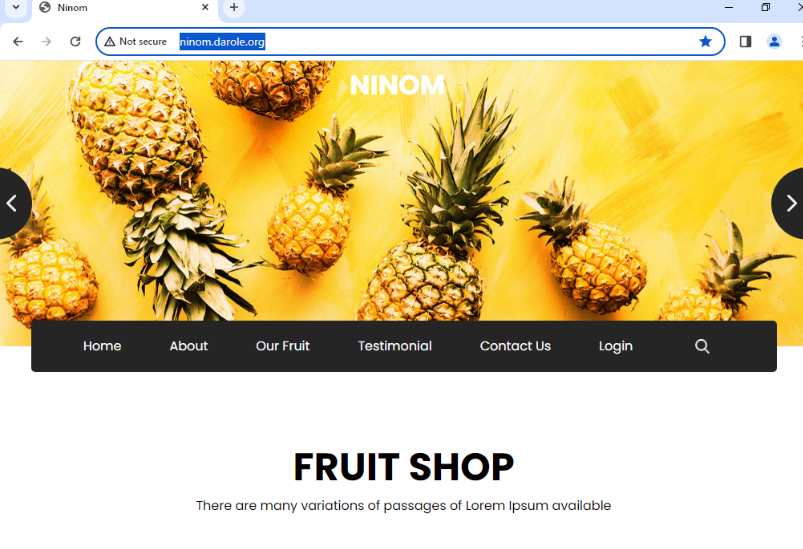

This document outlines the steps for creating Docker containers with Ubuntu running Apache, CentOS running HTTPD, and a custom Nginx image built using a Dockerfile. The containers are configured with specific volumes and ports for web applications. Adjust paths, IP addresses, and other configurations as needed for your environment.
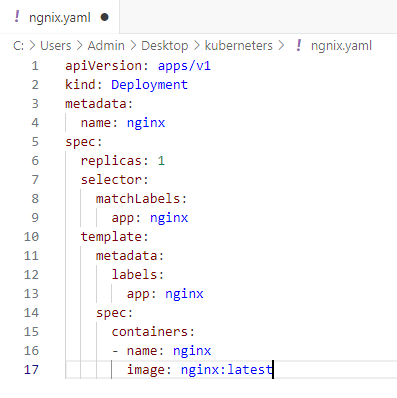
Start Kubernetes

root@kub01:~# kubectl apply -f ngnix.yaml
- Navigate to index.jsp
- Update today's date.
- Login to tomd01 and tomp01.

http://son01.darole.org:9000/projects


- Navigate to the Travel-Site project on the Jenkins dashboard.
- Click on Build Now to start the build process.

- Check the Build History section for the status of the build.
- Click on the latest build number and view the Console Output to ensure the build completes successfully.



Check Grafana Dashboards (Linux Hosts Metrics | Base)


Task 26. Initiating the Infrastructure Project: Shutdown Sequence Guide
Task 26.Day-to-Day Activities
Daily Operations
Linux
- Perform server health checks and service troubleshooting.
- Analyze system logs and manage packages.
- Manage filesystems, LVM and SSH.
- Resolve incidents and automate administration tasks using Ansible.
Docker
- Monitor container health.
- Start, stop and restart containers.
- Troubleshoot volumes, networks and container logs.
- Build and manage application images when required.
Kubernetes
- Check node and pod health.
- Deploy applications and scale replicas.
- Manage Services and NodePort.
- Troubleshoot failed or stuck pods.
- Perform rolling updates and rollbacks.
- Verify overall cluster availability.
Tomcat
- Monitor Tomcat applications.
- Restart Tomcat when required.
- Analyze application logs.
- Troubleshoot application availability and ports.
- Deploy and validate WAR applications.
Jenkins
- Monitor CI/CD jobs and builds.
- Review console logs.
- Troubleshoot failed builds.
- Manage Jenkins agents.
- Verify successful deployments.
SonarQube
- Monitor code-quality analysis.
- Review bugs, vulnerabilities and code smells.
- Verify quality gates before deployment.
- Work with developers to resolve code-quality issues.
Zabbix
- Monitor Linux servers and infrastructure.
- Check active problems and alerts.
- Verify host availability.
- Investigate CPU, memory, disk and service alerts.
Prometheus
- Monitor metrics and scrape targets.
- Troubleshoot targets that are DOWN.
- Validate exporters.
- Analyze infrastructure, Docker and Kubernetes metrics.
Grafana
- Monitor infrastructure dashboards.
- Analyze CPU, memory, disk and network trends.
- Review Docker and Kubernetes metrics.
- Use dashboards for troubleshooting and capacity analysis.
Monthly Activities
- OS Patching: Patch RHEL and Ubuntu servers, reboot and perform post-patch validation.
- Docker: Build, test, tag and publish updated images.
- Kubernetes: Deploy application updates and perform scaling, rolling-update and rollback testing.
- Tomcat: Perform application/WAR deployments and configuration reviews.
- Jenkins: Review pipelines, agents, plugins and failed builds.
- SonarQube: Review code-quality trends and unresolved vulnerabilities.
- Zabbix: Review alerts, templates, thresholds and monitoring coverage.
- Prometheus/Grafana: Review targets, exporters, dashboards and capacity trends.
- Linux: Perform log cleanup, filesystem checks, service validation and security checks.
Major Project Activities
1. Operating System Upgrade
RHEL 7 → RHEL 8
- Assess applications and dependencies.
- Plan backup and rollback.
- Perform OS upgrade.
- Validate services and applications.
- Monitor the environment after upgrade.
Ubuntu 20.04 → Ubuntu 24.04
- Perform pre-upgrade health checks.
- Validate application compatibility.
- Perform OS upgrade.
- Verify services and networking.
- Perform post-upgrade monitoring.
2. Docker Image Building
- Create Dockerfile.
- Install application dependencies.
- Build and test the image.
- Tag the image.
- Push the image to the registry.
- Deploy the updated image.
3. Kubernetes Deployment
- Create Deployment.
- Deploy the application image.
- Configure Service/NodePort.
- Verify pods and services.
- Scale replicas.
- Perform rolling updates.
- Test rollback.
- Troubleshoot failed or stuck pods.
4. Tomcat Deployment
- Checkout application source code.
- Build the application using Maven.
- Run SonarQube analysis.
- Generate the WAR file.
- Deploy the WAR to Tomcat.
- Restart/reload the application when required.
- Validate the application URL.
5. Jenkins CI/CD
The typical deployment workflow is:
Developer → Git Repository → Jenkins → Maven Build → SonarQube → Docker Image → Kubernetes/Tomcat → Application → Monitoring
6. Application Verification
As part of daily operations, verify the availability of business applications hosted on the infrastructure:
- Resume Builder
- Travel Site
- Carvilla
- Job Search Portal
- Online Education
- Organic Farm
- Ninom Website
- Task Manager Application
Application validation includes checking URL availability, application response, Tomcat/container status, logs and monitoring alerts.
No comments:
Post a Comment